





















Know Your Domain’s Name Server Better With Reverse NS API
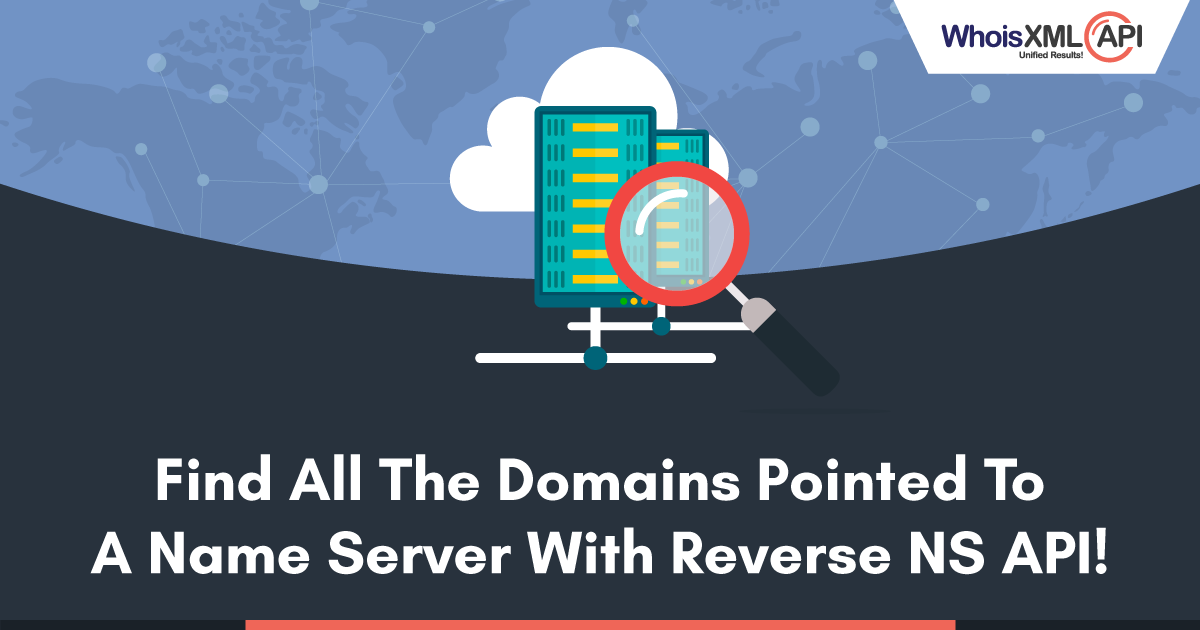
Name Servers are a fundamental part of the Domain Name System (DNS). They define your domain’s current DNS provider and are key to ensuring that your website is visible on the web. They are owned by web hosts and are specifically used to manage the domain names associated with their web hosting customers. Most hosting companies will have thousands of domains pointed to the same name servers.
While bundling domains on a single server works great for hosting companies, it may not always be great for domain owners. The phrase ‘the more the merrier’ can backfire if there is a malicious entity hosted on the same server as you because if you are in a bad neighborhood, it is bound to affect you too. It, therefore, is important for domains to make sure that they are in a safe and secure surrounding. Web hosts do try and keep bad actors at bay, but with each passing day, these malevolent entities do keep finding new ways to circumvent their discovery.
Most domain owners know the Name Servers their domains are hosted upon. In case you are not sure, you can quite easily find your NS record with DNS Lookup API from WhoisXmlApi. But our data intelligence doesn’t just end there, we believe in providing an even more in-depth analysis to our users. With over a decade of collecting & sorting domain data, our database consists of over a billion domains & sub-domains & we are always trying to ensure that our products & services give you the choice of finding all the domain data you are looking for in a single place.
Now, if you need to research on your domain’s Name Server, knowing just the NS record will not suffice. You will need to have further details on domains that are hosted on the same Name Server, be it for making sure your website traffic is not affected because of no fault of yours, for cybercrime detection/ prevention or even just for researching various domain connections. Reverse NS API is just the product you need! With a single query, you can now find all the domains that use the same Name Server.
With WhoisXmlApi you can quickly & easily know all the following details about a Name Server:
- Know all the possible domain names hosted on a Name Server
- Know the timestamp of the last update for that record
- Know whether it is a domain or sub-domain
- Know whether it is a gTLD, new gTLD or ccTLD
- Know the total number of result pages derived from the queried Name Server
- Know the total number of domain records retrieved for the query.
At present we have over a million NS records that are updated daily to ensure that you get the most accurate and extensive results for your domain research.
Reverse NS API from WhoisXmlApi can come handy to many professionals to uncover relations between domains that may otherwise not appear related. This information can be also be used by investigators to discover and illuminate connections among domains, especially for cybercrime such as such as identity theft, financial fraud or online trademark abuse. It can also be of great aid while researching on suspicious Name Servers. The uses of Name Server details are innumerable and depending on your business needs, professionals can avail the same.
So what are you waiting for? To get started with Reverse NS API, please click on the link: https://reverse-ns-api.whoisxmlapi.com/